
Fig. 0
Nuvoton Nu-Tiny NUC220 firmware update
problem
Followings are my detailed verification
procedure.
No.1 - 5 are same as Nu-Tiny FW update.html
No. 0 and 7 - are newly added, and No. 6 is editted.
0. First of all, I'm using Tool version 2.05 build 6815.
Fig. 0
My dialogue image of "Chip options" is different from your mail information (2018/12/6, Thu 22:05)
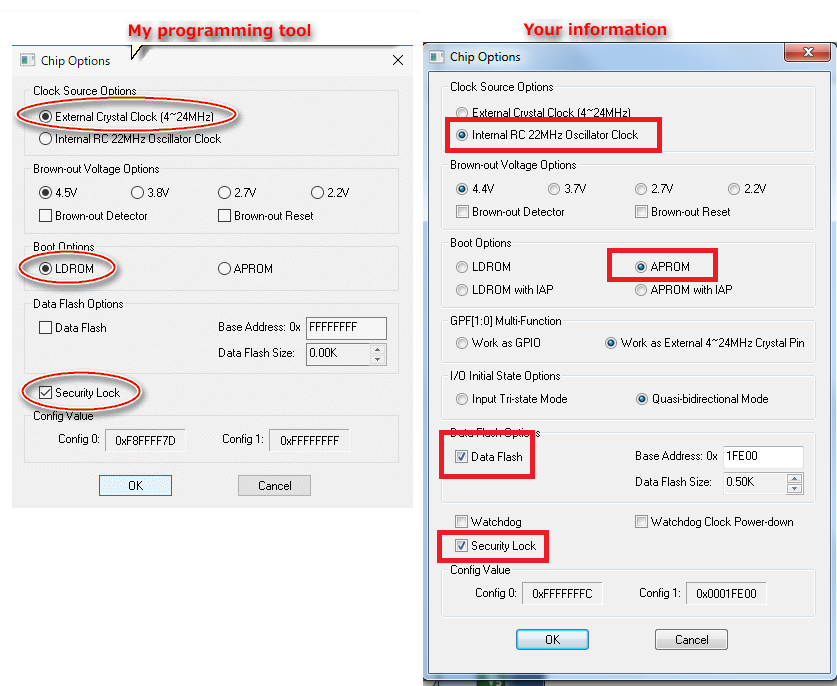
Fig. 0a
So, I'm afraid my tool version is different from yours.
1. Power on PC and start ICP programming tool 2.05.
Connect Nu-Link Pro to the PC and connect Nu-Tiny
NUC220 board to the Nu-Link Pro.
Select target chip : NUC100 Series
----> Click "Continue"
 Fig. 01
2. Click "Connect"
 Fig. 02
3. Following dialogue displayed. Click "Y"
 Fig. 03
4. Click "OK"
 Fig. 04
5. Click "OK"
 Fig. 05
6. ICP Programming Tool settings
APROM File: NuLink1FW.bin
Programming Options : APROM and Config checked
Setting dialogue
Boot Options: APROM
Data Flash Options: checked / Base Address: 0x1FE00
Security Lock: checked

7. Options settings
 Fig. 07
Then click "Start" button on main window.
8. Asked batch programming mode? ---> Click No
(The result is same as when click "yes".)
 Fig. 08
9. About 30 seconds after, programming flash was complete.
 Fig. 09
Click the "OK" button on Fig. 09 to close the window.
10. Plug out Nu-Link Pro from the USB terminal and Plug the Nu-Tiny-NUC220 in same(or other) USB terminal.
Nothing happened on main window.
So, click "Connect" button on the main window.
11. On very rare occasions, following window was appeared.
Even if it appeares, it disappeares quickly before I click "OK".
 Fig. 11
12. Finally, the ICP Programming Tool window goes no response.(sorry, the language is Japanese.)
 Fig. 12
13. If I plug out the Nu-Tiny-NUC220 from the USB and plug it again,
the window respond once and the Nu-Link ID(ffffffff) was displayed as Fig. 13.
but the application seems no response, becaouse the close button(x) does not respond as described below.
And the "Setting" button in Config Bits section remains inactive.
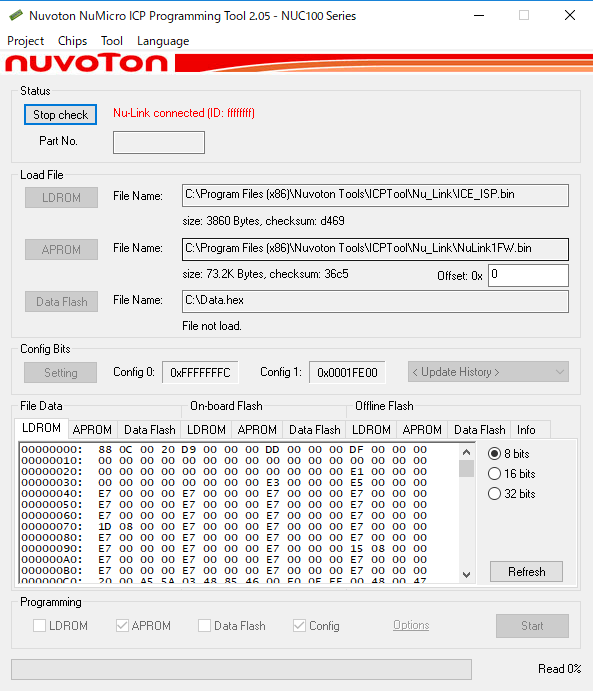
Fig. 13
In that case, the CPU activity ratio(on the task manager) is very high.
 Fig. 13a
When click close(x) button twice, following window("Please wait ---") appeared.
 Fig. 13b
14. I shutdown the ICP Programming Tool from task manager, and plug out Nu-Link-NUC220,
then start the ICP Programming Tool again and plug Nu-Link-NUC220 in USB.
the same situation as No. 13 occures.
After I shutdown the ICP Programming Tool and plug out Nu-Link-NUC220,
then start uVision5, plug Nu-Link-NUC220, and select debug mode.
uVision5 replies "read error"(Fig. 14a), and "Error: flash download failed"(Fig. 14b)
 Fig. 14a
 Fig. 14b